EZY VTT V2.0.0 — offline tabletop, Ezy and much more
Gather around one table: V2.0.0 adds an offline mode with a separate player display. You can also create rules right on the sheet, assign action sounds, resize tokens with the mouse, use chat roll formulas and much more. Ezy, our setup assistant, will also arrive later as a separate DLC.
We have changed and fixed a lot since 1.5. First, here are the highlights, followed by the full list grouped by topic.
Offline tabletop: the GM prepares, players see the scene
If you play in person, connect a second monitor or TV and open the player display there. The GM manages the session on their screen, prepares the next scene and decides when to show it. Players see the current scene while preparation stays with the GM.
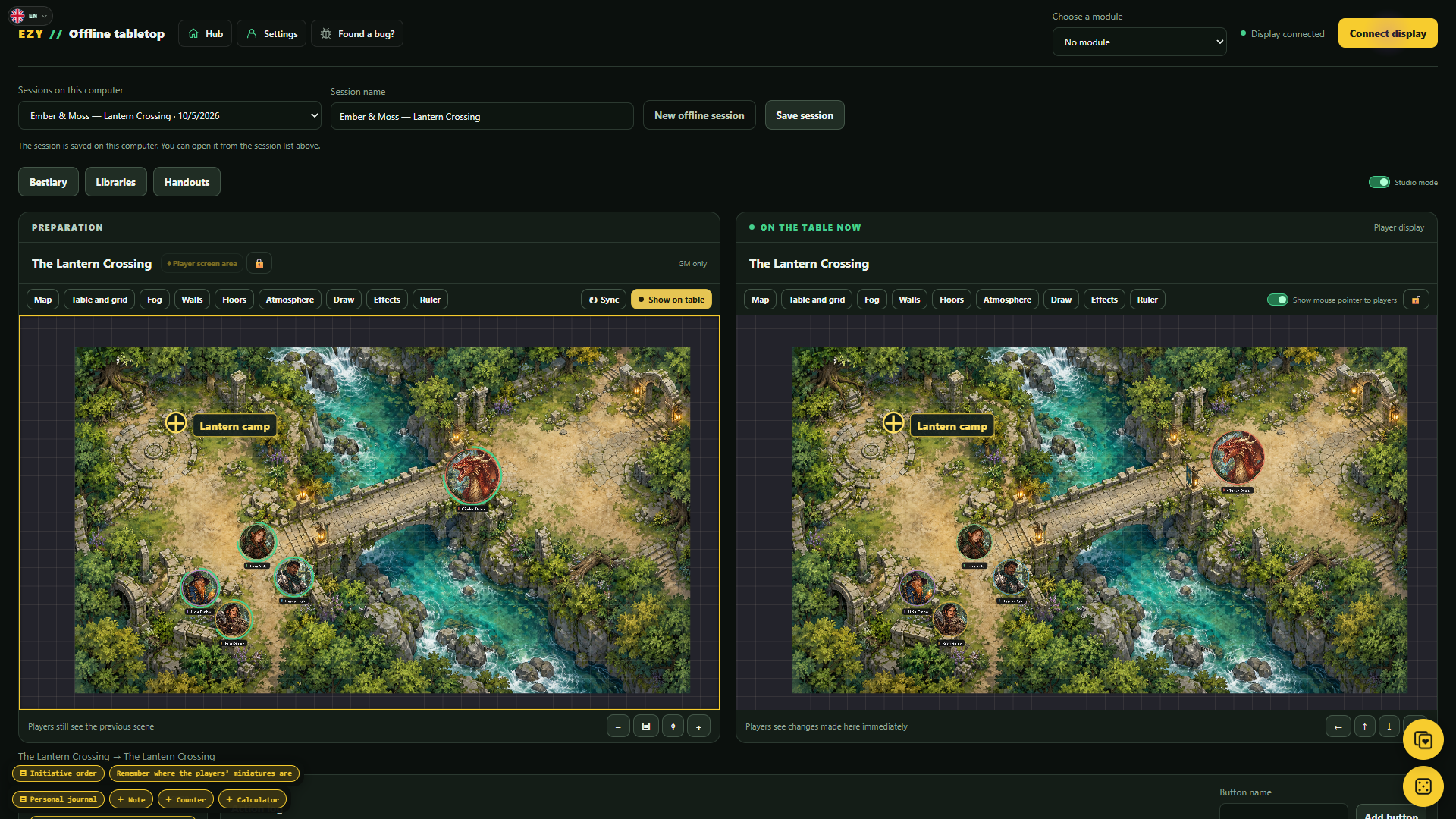
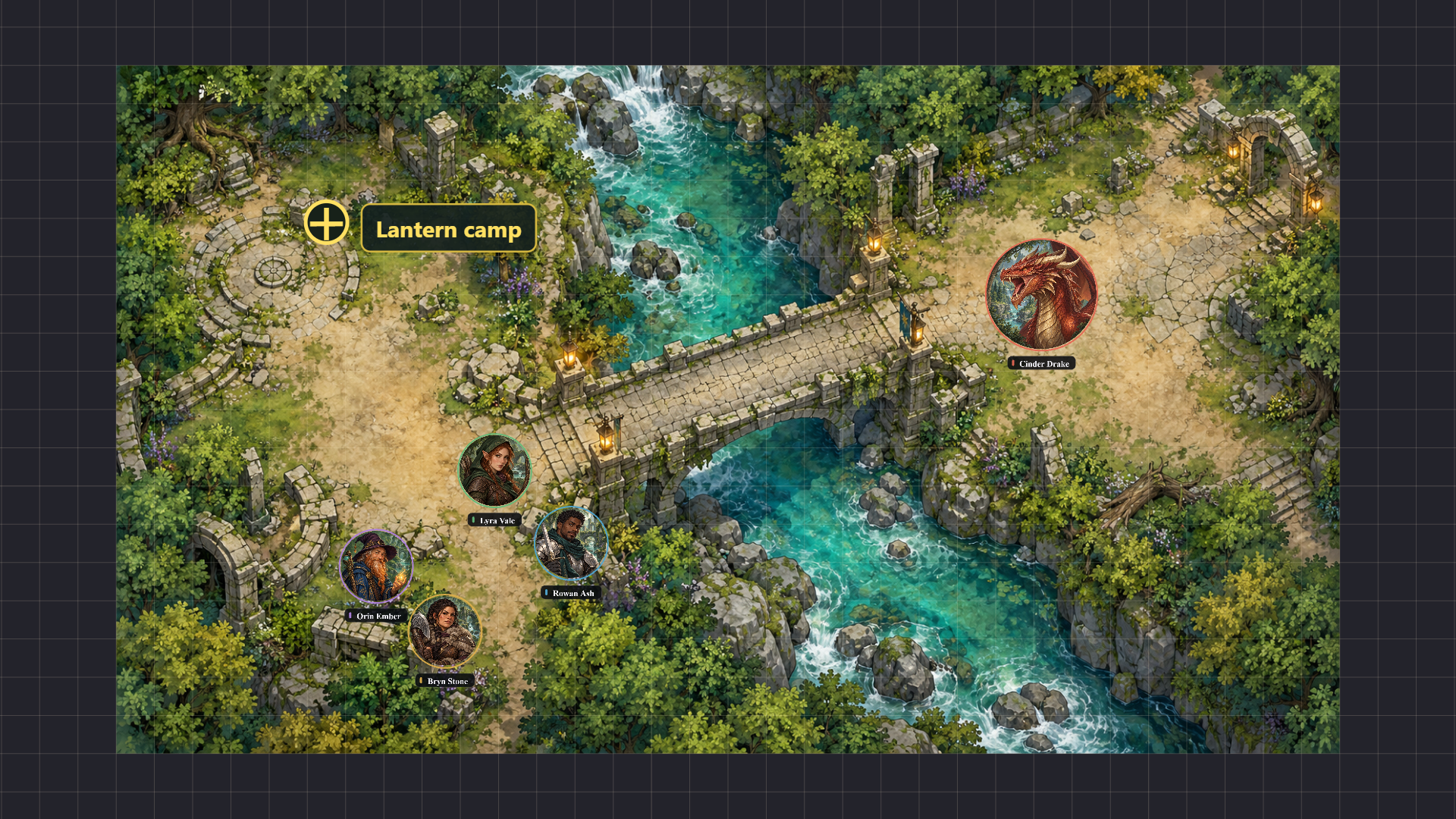
The player display receives the map, tokens, named markers, ruler, drawings, fog and weather. Show handouts, show or hide the GM’s pointer, and lock view movement so an accidental click does not shift the map.
The bestiary and libraries open in movable windows over the scene: drag an item or NPC straight onto the table. “Synchronize” brings the current state back into preparation, and “Show on table” presents the prepared scene to players. Sessions and position markers are saved on your computer, ready to reopen at the next game.
If you do not need preparation, turn off “Studio mode”: the current table fills the workspace. This is especially useful on smaller monitors. The prepared scene stays in place when you return to two panels.
In this release, the offline tabletop works in 2D.
Meet Ezy Beta
Ezy will arrive later as a separate DLC; she is not included in V2.0.0.
EZY VTT has a new assistant, Ezy. She is still a little clueless and may make mistakes, but she can already help with simple setup questions: where to find a feature and how to get started.
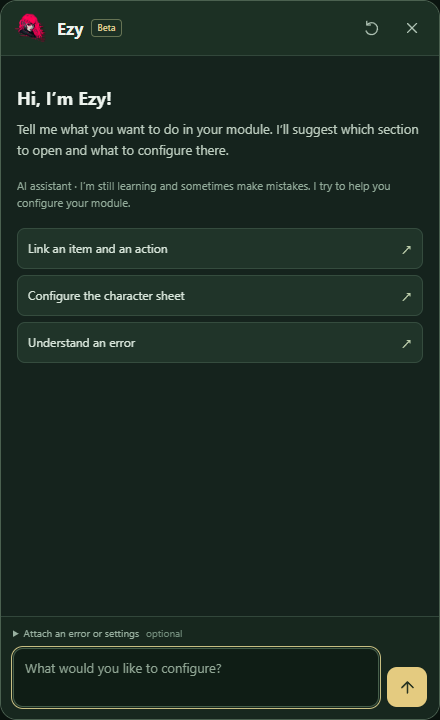
Ezy processes questions locally using chat messages, information you attach and EZY VTT’s help materials. She has no functions for independently browsing your files, running commands or changing a module.
This is a Beta: we will keep training her and improving her answers. Please do not be too hard on her — she is sensitive, even if she does not show it.
Start with the character sheet
After creating a module, you go straight to a sheet to begin setup. Stats, resources, actions and items are now created where you plan to use them.
All 25 stat types are available, from numbers and text to choices, ratings, tracks and tags. Build calculations visually and configure the block’s appearance alongside its rule. A resource can explicitly be assigned as Health with the required damage and death rules.
Use a working sample to try values and resource spending. Action trials check targets, payment and consequences; item trials check equipment, charges, restoration and independent copies. These experiments do not change game characters.
Give actions their own sound
Assign an action or effect a sound from the module’s media library. A hit, spell or triggered effect can have its own sound for participants to hear. One use does not repeat the sound separately for every target.
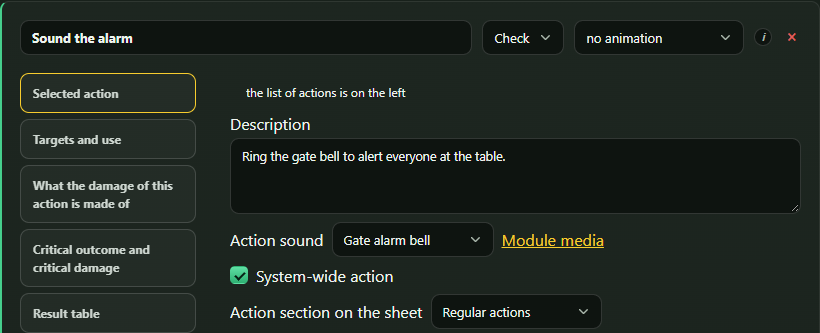

On failure, keep the usual sound, turn it off or choose another. Miss sounds play after the attack roll, while hit sounds accompany the animation. Each participant controls music and sound effects separately; volumes are saved between sessions.
Resize tokens with the mouse
Drag the handles around a token to resize it and hold Shift to keep its proportions. There is no need to guess the right size through number fields.
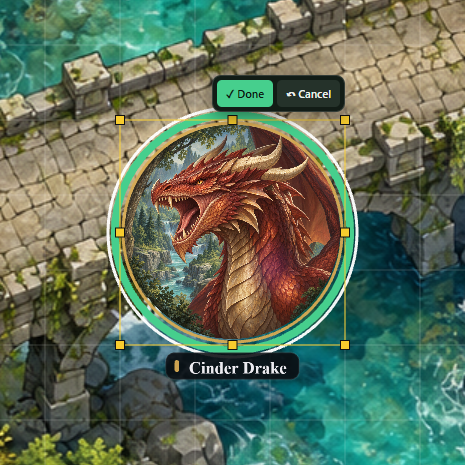
“Done” finishes the edit; “Cancel” restores the previous size. You can also flip both axes and use “Bring to front” or “Send to back”. Size and order are saved and shared; these controls work in 2D and 3D on the main table.
Chat formulas and a clearer roll log
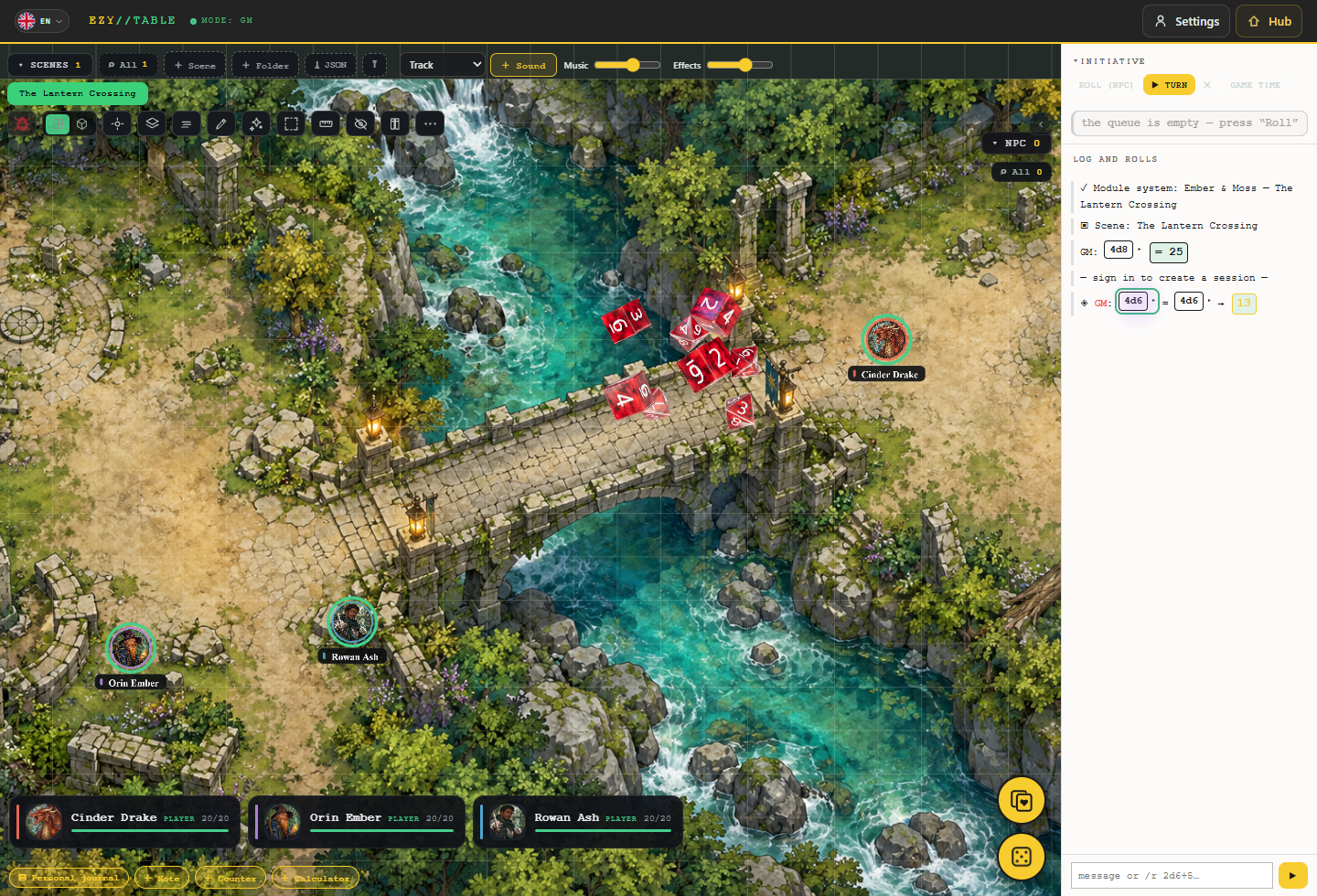
Write a formula directly in chat, for example, /r 2d8 + 3. Dice expressions, rolled values and totals are highlighted in the log, making results easier to read and discuss with your group. Mix different dice, use mathematical functions and define success pools.
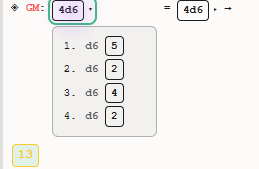
The total is visible immediately, while individual dice results expand by clicking the entry or using the keyboard. New messages do not close a roll you have already expanded. Manual rolls and rerolls of persistent dice are also recorded in the log once they stop.
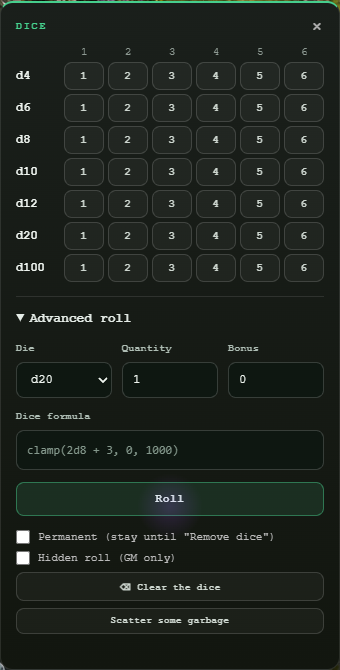
The dice window has a quick-roll grid: one to six dice of each familiar type. Advanced roll has a separate formula line below die type, count and bonus. Fields are darker and more spacious, checkboxes sit beside their labels, and the window opens over the tool buttons.
There are more options after a roll: advantage and disadvantage sources can cancel, chosen faces can be replaced with a preview of the future total, and rerolls can be paid from a suitable pool. A target’s owner can receive a defensive reroll offer on their own screen. Find the details in the full list below.

Full changelog since 1.5
Offline games and the player display
- Added a 2D offline tabletop: the GM prepares the next scene on their screen while players see the current scene on a separate monitor or TV. Sessions are saved on the computer, with an explanation of how to reopen them beside the save button.
- “Synchronize” brings the current table back into preparation, and “Show on table” presents the prepared scene. Both buttons sit on the right of the toolbar. The player display area can be moved, centered and locked; the lock is saved.
- The active tool glows green. Preview and player-display flips have been removed; the map stays visible when a token moves, and tokens move promptly and smoothly for players.
- The player display shows ruler paths, radii and areas, plus temporary outlines for walls, drawings, fog, effects and movement. Clearing or finishing a tool stays synchronized; ordinary scene updates do not replay pings.
- “Remember where player figures stand” lets you create, name, move and delete markers. They are saved with the session; the GM controls their visibility separately on each display. Long labels remain readable.
- You can show or hide the GM’s pointer, lock the view against accidental movement and show handouts. Showing or hiding a handout updates the preview and player display together.
- The bestiary and libraries open in movable windows over the table. Items and NPCs can be dragged straight onto the scene; adding an NPC to the current table also adds the same instance to preparation.
- You can turn off “Studio mode”: the current table fills the workspace while retaining the player display’s proportions. Preparation is kept when you return; the mode is remembered, and scene selection and creation also work with one panel.
- “Effects” and other working windows can be moved and opened over the interface. Tools remain accessible while scrolling, and unnecessary scrollbars have been removed. The top bar contains Hub, profile and issue reporting; player-window styling and closing have been fixed.
- Rain no longer falls in repeating lines or breaks when a scene is edited. Weather matches the player display; additional atmospheric effects have a readable selection list.
- Public GM rolls are shown to players, while hidden rolls stay with the GM. Old dice no longer reappear after clearing.
Ezy Beta, your setup assistant
- Ezy will arrive later as a separate DLC; she is not included in V2.0.0. Meet Ezy Beta, an assistant for simple setup questions. She processes questions locally using chat messages, information you attach and EZY VTT’s help materials. She has no functions for independently browsing files, running commands or changing a module.
Create rules right on the sheet
- A new module opens directly on the player character sheet. Add-ons start there too, while the base module remains protected. Sections now have clearer names: “Module overview”, “Game rules” and “Generators”.
- All 25 types of game stats, calculated values and resources can be created from the sheet. Build calculations visually using field and skill names or enter a formula; unknown references and circular dependencies are shown before confirmation.
- Configure the rule and block appearance together: icon, labels, color, alignment and resource bar. Properties explain the difference between a shared rule and a personal value and show how many displays use the rule.
- A working sample in the stat window lets you change values and spend resources without writing trial values to a character. The table preserves field types, starting values and restrictions on calculated and locked stats.
- An empty sheet offers quick ways to get started. Canceling leaves no empty rules or blocks; creation can be undone in one step. A whole-sheet copy gets its own blocks, while a display copy uses the shared rule. Appearance errors are shown beside the field without losing input.
- Create an action and its button from the sheet in one window: set its cost, recipient, roll, consequences and appearance. The trial checks spending, insufficient resources, targets and results on sample characters without changing game participants.
- Create an item, its library, action and equipment block from where it will be used on the sheet. Two independent sample copies let you check equipment, charges, spending, restoration and targets; canceling leaves no extra objects.
- When saving conflicts, related sheets, rules, buttons and items can be selected as a consistent set. If the choices are incompatible, your work stays in the editor.
- “Check calculation” explains its roll and consequence checks more clearly; preparing an export also gives a clearer account of the validation result. Closing, scaling and minimizing a sheet work on the first click after text entry. The test in the action editor shows the formula and a breakdown of the total with field names. With “Configure sample”, you can set module fields, skill levels and input values; search helps you find what you need, while derived values follow the module’s rules. Sample settings are remembered separately for each module without changing the module or characters on the table. This tests the roll and the result branch; costs, target selection and permissions are checked on the game table.
Sheets, skills and available actions
- NPC sheets and the bestiary respect resource and class choices without adding unwanted panels or Health. A sheet without a main resource works, including quick editing and shared updates.
- Rich text can be edited directly on the sheet’s freeform canvas, with formatting controls inside the block and undo support.
- Authors can distribute actions among their own blocks, hide unnecessary sections and show rare actions after a search or when a required state is active. Extra lists and panels no longer duplicate above the sheet.
- Large action and class advancement lists have sections, search and pages without losing selected answers. A spellbook can show spells available to the character, grouped by level.
- Open the equipment grant catalog from the sheet and pin actions to a saved favorites panel. Buttons disappear when the character loses access to an action or item.
- The palette shows blocks for disabled mechanics and lets you enable a mechanic while adding it. Adding and moving blocks correctly marks the sheet for saving.
- Open sheets immediately update values affected by items and effects, skills, portraits, roll history and other blocks for participants. An added skill stays in its own block; the owner and observers see skills and buttons added by the GM.
- Skill blocks can hide “+ skill” and display a number, dots, rectangles or a bar with a maximum. Scrollbars can appear always, when needed or never without disabling scrolling.
- Reference actions appear as expandable descriptions instead of use buttons. Skills can have an advancement cost multiplier that applies during character creation and experience spending.
- Shared sheets restore more reliably on entry. Secret-sheet action results survive reloading and stay with the GM; a tooltip covering tabs has been removed.
- States are grouped into author-defined categories, and only active effects can be shown. Priority hints and filled-section markers in the effect editor are more accurate.
Shared actions, variants and advancement
- Items, creatures and effects can use a shared action with their own differences. Inherited and changed settings are visible; an individual difference can be reset, and linked sources found under “Where used”. Source copies retain independent settings.
- Named variants are created inside a main action, keep their own differences and states, and appear in the normal use menu. Long lists have search and pages; up to 400 variants are supported.
- An action can be shared by player characters and placed in the required sheet section without copying it into every class. Availability takes class, level, equipment and states into account.
- Very large action and variant catalogs have compact rows, pages and use-method search. Search stays accessible after filtering when assigning actions to NPCs, items and other sources.
- An action can ask several named choices in sequence and collect difficulty modifiers in one window. Unavailable continuations are ruled out in advance; costs are checked together, canceling spends nothing, and payment is not repeated.
- The target’s owner can choose a variant, such as a way to resist, on their own screen. Unauthorized cancellation, repeated reaction questions and outdated choice or reroll windows have been fixed.
- An action or variant can run another action, including after its own roll; circular and excessively long chains are stopped.
- An action-table result can write text to a field and grant rolled items. Personal rewards are not duplicated with multiple targets, and results do not repeat in a separate line.
- Actions and items can change with level through a base entry and differences for chosen tiers. Passive rules and feature descriptions appear in class advancement without an unnecessary use button.
- Variants can have their own tags and normal or critical damage, remove states, choose targets and summon creatures. One immunity template can receive the protected action on use; separate immunities work independently.
- An effect can temporarily grant actions and take its duration in rounds from the main roll without another die. Granted actions disappear when the effect is removed.
- The quick “Attack” button has been fixed; attacks without a roll but with configured use are available from the target’s right-click menu.
- States to remove are selected with checkboxes, including multiple sources. Requirements can apply to both performer and target. A confirmed action does not cancel itself through its own payment or state removal; removing another character’s effect also works.
- An action’s area duration keeps both the number and the selected time unit, such as “20 rounds”. Area settings are also saved while configuration is still in progress. When completing an unfinished area, the shape and center shown in the editor are saved as well.
- Smoke and other purely visual areas can be placed in a selected empty cell. Creating them no longer requires a target token. Grenade throws use the chosen grenade’s difficulty and range limits; an entered difficulty does not bypass them. The area appears after the grenade’s flight.
- If an area is not fully configured, the message explains that you need to open the action in the editor and set the area’s shape and size.
- Through the right-click menu, the GM can change a persistent area’s shape, dimensions and animation, move it to a selected point or remove it early. Editing and moving preserve the area’s duration and rules. This works in 2D and 3D.
- By default, a persistent area is created only on success or critical success; use without a roll works as before. In the area settings, the author can allow creation on failure or critical failure, at the original point or another point chosen after the roll according to your game’s rules. There is no second roll or repeated resource cost; cancelling the other point cancels only area creation. The action’s other effects keep their own rules. Outcome settings are grouped in a compact section, with help text organized into collapsed groups. Authors can configure scatter for an area after failure: direction uses 1d8, and the distance roll and its units are configurable. Both rolls are recorded in the log. The GM accepts the calculated point or chooses a correction according to the game’s rules, in both 2D and 3D.
Formulas, results and dice rules
- Enter roll formulas directly in chat, for example /r 2d8 + 3. Dice expressions, rolled faces and totals are highlighted in the log; combined actions no longer leave empty lines. For ordinary action checks, the log shows the dice results and full calculation: the formula, numeric bonuses, and field and skill names and values. The breakdown uses the completed roll.
- Chat rolls support more options: nonstandard dice, mixed expressions, success pools above or below a threshold and exploding dice. Participants see the same result and recorded roll, including d100; conditional formulas roll only the chosen branch.
- Special faces work in actions, opposed checks and initiative, with conditions and “success with a complication”. Conditional extra dice are visible to participants without duplicates; the log describes the kept roll.
- Paid rerolls check availability and remaining resources before payment, keep weapon bonuses and can retain the better result. The log shows both rolls; with several payment sources, the player chooses an available pool.
- The target’s owner can pay for a defensive reroll of a successful check against them, damage or a table result. The question goes to that owner, and participants see the results. For an area, only that target’s share changes. The selection rule is configured separately for characters and creatures; a table lets you choose one of two rows.
- Advantages and disadvantages can combine from independent sources or cancel before rolling. Fully canceled sources are not spent. Paid face replacement shows the result before confirmation; the author chooses original or replaced faces for natural criticals. Settings have more room.
- The first roll after startup is more reliable. If a roll fails before consequences are applied, the action cost and paid offers are refunded, and the log explains what happened.
- The dice window contains quick rolls of one to six dice of each type. Advanced roll has a separate formula line below die type, count and bonus. Checkboxes sit beside labels, dice and card icons are recognizable, and the deck button no longer covers the dice window.
- A sheet roll button can use a formula with dice, stats and functions. The author chooses who may change it: author, GM or sheet user. Right-click changes are saved for the character.
- Comparisons ≥, >, ≤ and < save and apply correctly. Strict opposed checks, choosing the easiest targets with one roll and difficulty from a target field have been fixed; the log shows the actual threshold with distance, cover and other modifiers.
- Target stats and skills are selected by name. A general modifier can apply to checks and be disabled for a particular action; validation warns about double counting. Service stats are hidden from selection; when no suitable fields exist, you can roll without them.
- Playing-card faces, suits and corner values have been restored, including on the offline tabletop.
- Long quick-roll and formula entries are collapsed by default: the total is visible immediately, and individual faces expand with a click or the keyboard. New messages do not close a roll you have already expanded.
- Advanced-roll fields are darker, aligned and spaced more generously; die type, count and bonus are readable without crowding, and the formula has its own line.
- Dice above the log can be picked up with the mouse again. Chat fields and tool windows keep their normal controls.
- Manual rolls and rerolls of persistent dice are recorded in the log once they stop. The entry contains only the affected dice, is not duplicated and does not carry over an old bonus or formula total. Hidden results stay hidden; d100 pairs retain their correct total.
Health, protection and damage calculation
- Initial resource filling and shared values for a new NPC in group play have been fixed. A random maximum is rolled once and saved. Healthy characters no longer receive extra wound penalties; stabilization removes “dying” and the unnecessary check.
- A resource created from the sheet can be assigned as Health with a damage profile, lower bound and death rules, including an action on depletion and an instant-death threshold. Nonlethal damage stuns without changing another Health pool.
- Death is checked against the life resource that actually decreased. Another empty pool or an action without Health loss no longer causes extra deaths; automatic rules resume after manual revival.
- For a particular hit, rules can inspect item fields and condition, change the hit profile or tags and compare damage that passed through protection. Protection and damage steps can depend on the selected weapon’s tags.
- Damage selection from same-named fields in different libraries and preservation of damage parts, tags and multipliers have been fixed. Damage-profile steps move with their settings; explicitly assigned item attacks remain available.
- Extra damage can use one die of the current weapon or a target field value. Additions of the same type combine before armor and resistance; protection and its wear are calculated once. Missing NPC extra damage and critical-hit consequences have been fixed.
- Critical outcome and damage changes are configured separately. Set a bonus as a number or the maximum of a main die, require a minimum face or armor penetration, allow it for chosen damage parts or bypass armor. Criticals also work for opposed attacks and creatures.
- Protection accounts for active effects and equipment, and temporary bonuses do not become permanent wear. Missing one kind of armor no longer stops wear on other equipped armor.
- Area attacks correctly select everyone inside the shape, including an area around a target. They use one roll, one ammunition cost and one projectile; each target’s protection is calculated separately. The outline is visible, and the animation starts after the projectile arrives.
- A damage profile can be assigned to a creature, bestiary group or module and is saved on the token. A different profile can be chosen for one hit to direct damage to the required resource.
- An action can hit a specified zone or ask for it before payment; zones can set a difficulty penalty. Point-based range is measured between cells and respects both bounds.
- Consumable protection passes only the unabsorbed remainder onward. A periodic effect can use a chosen resource; its loss is visible on the token and in the log, and respects the death threshold, including below zero. Immunities and increases to the maximum together with the current pool are available; the target condition sits beside selection.
- Wound tiers and other ladders can use fields, calculated values and a resource maximum; percentages use the pool’s own maximum. Overlong formulas are no longer silently cut off.
- Damage numbers and token shaking work with author-selected damage profiles, both for actions and for damage applied through the menu, in 2D and 3D.
Items, equipment and libraries
- Items can have fractional volume, stacks count toward capacity, and exceeding it is visible on the sheet. Several equipment lists can share a library; transfers preserve quantity, equipment and condition.
- Items from any library provide actions in their own row; the author decides whether equipment is required or inventory is enough. The clicked instance and its charges are used; the last potion or scroll no longer disappears without its effect after payment.
- Buttons find suitable charged items and offer an instance choice. Unavailability is explained, and balances update without reloading. Charge-spending bypasses are closed, and a damaged button no longer breaks the whole sheet.
- Deleting or copying an item does not disrupt other references; the editor shows where it is used. Slots accept any permitted tag. Validation explains missing hosts, libraries or incomplete settings without the previous false warnings.
- Transparent item images retain their PNG transparency.
- Item maximum and starting condition on grant are set separately. Inserts can be restricted by library, tags and equipment; an insert can also make the “Equip” button appear. An empty slot can be selected on insertion, and canceling spends nothing.
- An attack uses only active inserts, tags, ammunition and attack counts for the selected weapon. Insert rules update for existing characters; states that end when an item is unequipped disappear for participants.
- Stacks keep their quantity after purchases, sales, loading and reentry. Selling one item does not remove the rest; items with individual condition remain separate instances.
- Descriptions preserve lines, paragraphs, lists and tables in the compendium, sheets, shops and handouts. Charges and composite values are readable; markup does not appear as raw tags. Search is more responsive and keeps the cursor position.
- Rules can change one item instance’s condition without affecting other copies. Counters on the author’s sheet show that instance’s remaining charges after spending and restoration.
- A library can be made GM-only: players cannot see its contents or receive its items through grants, shops or automation.
- The bestiary shows group names, supports other names for search and actions against a target, including opposed checks. A library choice applies its influences; choosing it again does not repeatedly add one-time bonuses.
- Equipment rows adapt to the available width in a narrow character sheet window. Item quantities and action buttons stay visible.
Logic, effects and automation
- The logic graph zooms around the cursor and remembers its scale. Connections are removed by right-click instead of an accidental left-click; edits from different windows do not erase new connections.
- Converging branches of different lengths have been fixed; a shared step waits for active predecessors. Graphs with several events let you select which start to test.
- Added events for the start and end of an individual entity’s turn and protection wear. Rules can react to resources lost through damage and limit item changes to an equipped instance.
- Calculations can use a particular item field’s current condition, capacity and missing amount. Calculated values are available for resource, damage, currency, field and charge operations; sums can be built visually.
- Automation can fully restore a resource to its individual maximum. Replenishing a calculated pool changes its current value rather than maximum; restrictions remain, and a calculated maximum cannot be accidentally overridden by hand.
- Item, insert and effect influences, advancement thresholds and tier difficulty can be built visually from fields and operations. Conditions appear in words, performer and target are distinguished, and “subtract” and “fix” work alike on sheets and tokens.
- Module validation explains unsuitable actions for lasting areas, effect resources and formulas that cannot work with the selected rule.
Main table, camera and tokens
- Resize a token using eight handles; Shift keeps proportions, “Done” confirms and “Cancel” restores the size. Flips and stacking order are saved and shared. In 2D and 3D, placement, duplication and movement can be undone with movement allowance restored. On the main table, Ctrl+Z undoes and Ctrl+Y redoes the GM’s edits: token placement, movement and size; the map, walls, fog and drawings; and movement and geometry changes of persistent areas. Players and spectators cannot undo shared changes; another person’s later edit is not overwritten. Works in 2D and 3D.
- Size driven by a sheet field changes the token correctly, persists after loading and returns after a temporary effect ends without accumulating scale changes.
- Light and shadow areas, rings around detected targets and true-form labels are visible in 3D. Blurry duplicate labels under glow and increased scale have been fixed.
- The GM can freely draw animated areas of fire, smoke, ice, webs and other effects, change their outlines, appearance, color and density, and move or resize them in 2D and 3D.
- Clicking brings sheets and the compendium to the front; settings and handouts open above them. Drag items onto the map or sheet and NPCs to the chosen point without closing the bestiary. Dialogs share a dark style; dice and card tools remain accessible.
- The middle button pans the camera, the right button rotates it, and the wheel zooms. “Space + left button” pans in 2D and 3D even over tokens; a short right-click keeps the context menu. After switching views, click the 3D table, then hold Space and drag with the left mouse button to pan the camera as with the middle mouse button. Text fields keep normal typing.
- Right-click selected text to copy it. Use a rectangle to select objects and Shift to add to selection; Delete lets the GM remove selected objects while retaining normal text-field behavior.
- Entry with a large module and connecting during session restoration are more reliable. Loading shows its stage and volume; if it stops, it explains what happened and offers reconnection.
- Lost final edits during quick reloads, demo-player restoration, missing sample characters on the first preview and lost network NPC profiles have been fixed.
- A normal click on a token no longer opens resizing. The resize frame appears only after choosing “Token size…” from the menu. The numeric size panel stays clear of the handles and finish buttons and closes when you start dragging a resize handle.
Sounds and personal notes
- An action or effect can use a sound from the module media library that participants hear. One use against several targets plays the sound once. Long sound filenames stay within the action card. In a narrow window, the label, selector and media link move to separate rows; the sound list has search and wraps long names.
- On failure, keep the same sound, turn it off or choose another. Miss sounds play after the roll and hit sounds with the animation; music and effects have separate personal volumes saved between sessions.
- Personal notes are collected in a journal with pages. Create, rename and edit them or open them as individual notes; previous entries appear automatically.
Editor, saving and import
- Use-component types are edited as a list of names with add and remove controls, without manually entering service data. Undo and redo work in system, libraries, actions, effects, bestiary, logic, automation, classes, generators, shops and scenes.
- Small PNG, JPEG, WebP and GIF maps can be stored inside a module. A damaged empty action entry no longer breaks the whole catalog.
- The expert editor suggests module fields, functions and references while entering formulas and rules. Large files scroll and edit more smoothly, without unnecessary scrollbars or empty space; long line numbers are readable.
- Editors have consistent widths, spacing, navigation and validation. Catalog and selection search is broader, and clipped or cramped blocks have been fixed. Large modules open faster; searching and navigating do not mark them as edited. Explanations and hints throughout the authoring tools now use a compact font with regular weight, subdued colors and consistent spacing. Line lengths are limited for comfortable reading.
- Saving accounts for input during slow writes and does not report success on failure or insufficient space. Independent section edits merge; conflicts offer version comparison. Switching modules waits for saving, and errors leave your work open. Saving your own changes again no longer produces a false version conflict.
- A module copy keeps its description, cover, provenance and author restrictions; an add-on keeps its link to the base and its own content.
- Interrupted imports continue with the same file without duplicates or reuploading accepted media. Repeating a completed import does not erase later edits; incomplete imports are clearly marked. A removed action group does not return by itself.
- Saving one module’s character does not overwrite another. Simultaneous imports from several windows do not lose previous modules; deleting a module while saving a character does not leave an orphan record.
- Author-defined names are no longer accidentally translated with the interface: stat, variant, resource and object names stay as their author wrote them.
- New attributes, derived stats and skills receive identifiers from the full name rather than its first letter. References to temporary values are preserved when you finish typing.
- Identifier renaming in the editor has been fixed: formulas, calculation settings, sheet references and bestiary values are preserved. Reference-counting errors are shown explicitly.
Workshop, settings and help
- Upload a new .ezy file version into an existing module while keeping characters, its card and Workshop link. “Update in Workshop” updates the existing publication.
- Module covers use a square format with an immediate preview. Publication results and notes appear separately, with an explanation of initial “Private” visibility. HomeBrew is explained as an independent user version of a module.
- Settings open over the current screen with convenient navigation, including narrow windows. “Settings” and “Hub” buttons are readable; Steam name and avatar come from the current profile, while you can keep a custom table picture.
- Moving a sheet or note into a second window is available in the Steam app. The web version explains the limitation and keeps the material open.
- Added an EZY VTT intro that does not repeat when returning to Hub. Reduced-motion mode uses a calm transition.
- Legal documents are fully available in English. The guide, reference and tips have more lessons on the editor, shared actions, advancement, logic and sound; new settings are translated into all nine languages.
- The “Workspace window” notice replaces the language, settings and Hub menu at the top. It wraps in narrow windows and stays clear of the table’s workspace.
- The second table window has one set of minimize, maximize and close buttons, matching the main application window.
- Buttons and input fields now follow the application’s shared style, including the button to cancel point selection on the table.
- Main menu cards appear with a new animation.
Thanks to everyone who plays EZY VTT and reports issues through Telegram, Discord and the in-app button. Enjoy your games!
Posted by the game’s developer or publisher to its Steam community hub and published by Valve through Steam’s public news API. Sifter reproduces it unedited and writes none of it.